
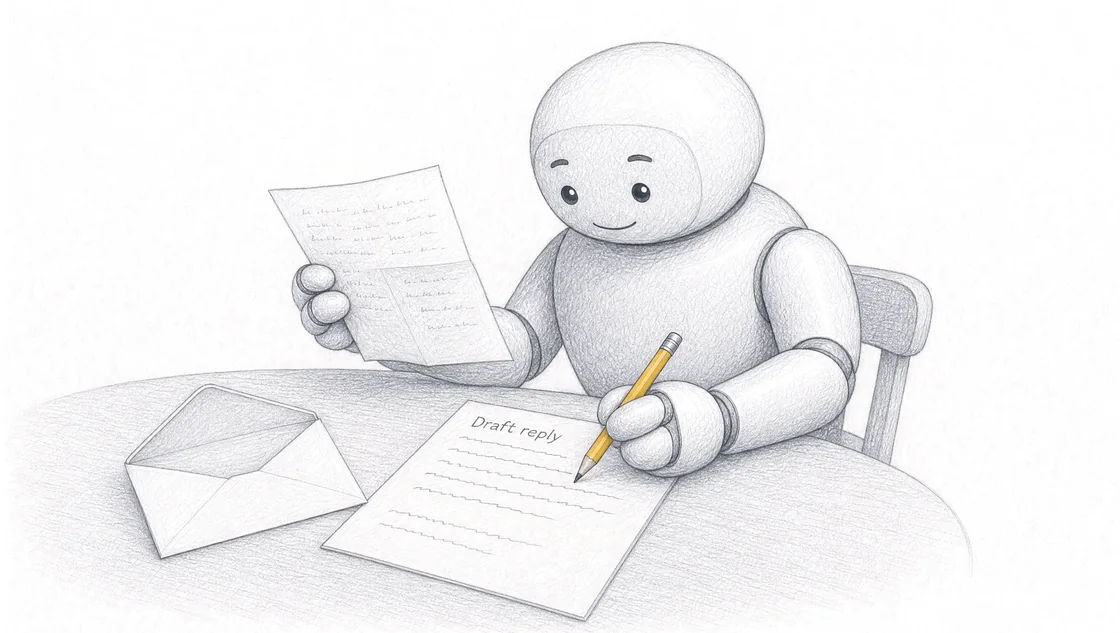
Sort the mailbox by what you'll do about each message, not by what it is. An AI workflow for email management is a written instruction set that reads incoming mail, files it into categories you defined, drafts the replies you send every week from source material you approved, and compresses long threads into the state of the job. The software part is nearly solved. The part that decides whether it works is whether your business has agreed what the categories mean and what a correct reply contains. In a shared mailbox, that agreement is the whole job.
TL;DR
- The three jobs that pay off in a mailbox are sorting, drafting the repeated replies and summarising threads. Everything else is a variation on those.
- Categories copied from a vendor's defaults sort your mail into work, personal and promotions. Categories built from your own week sort it into quote, booking change, supplier chase and complaint, and those change who picks the message up.
- A priority label is only as good as the rule behind it. Write the rule your business already uses in your head, then hand that rule over. An urgency score nobody agrees with gets ignored inside a fortnight.
- Draft quality is set by the source material, not by the model. The assistant can write beautifully from nothing and still get your warranty period wrong.
- A shared mailbox multiplies whatever your team already does. If four people answer the same question four ways today, AI drafting gives you four confident, well written, still inconsistent versions tomorrow. Fix the agreed answers first.
- Summarise for a decision. A summary that tells you everything that happened is a second thread to read.
- Sending stays a person's job, and so does deciding which mail is allowed into which tool.
What does an AI workflow for email management actually change?
It changes three things: how mail gets sorted, who writes the first draft of your repeated replies, and how long it takes to work out where a job got to. Microsoft describes an AI email assistant as a tool that helps people manage their inboxes, organising messages, suggesting replies, prioritising important emails, drafting emails and handling tasks such as scheduling meetings. 1 That is the software. The workflow is the part you write: the instructions that tell the software what your categories mean, what a correct reply contains and which facts it is allowed to use.
Keep those two apart, because the market keeps merging them. Search this subject and the results mix two categories that have almost nothing to do with each other, because email marketing platforms rank alongside inbox assistants, and virtually every marketing tool now offers some version of generative AI content and send-time optimisation. 2 That is a different job. Campaign tools help you send one message to a list. What I'm describing here is the mailbox you and your staff open every morning, with the same five requests in it.
The reason AI does anything a filter cannot is that it reads meaning. Traditional rules and filters operate on rigid if-then logic, such as moving everything from a named sender into a folder, while AI assistants are built to understand nuance, context, sentiment and intent. 3 A rule can catch every message from your biggest supplier. Only a reading step can tell you that one of those messages is a price rise and the other twelve are delivery dockets.
The tools that do this come in three shapes, and buyers' guides have started segmenting the market that way: a layer that sits on top of your existing Gmail or Outlook, a standalone client you log into instead of your mail provider, and a drafting plugin that only writes text. 4 I'd start with the layer, because the habit you already have is an asset. Nobody's inbox problem was ever solved by learning new keyboard shortcuts.
How do you get AI to sort a mailbox by what matters to your business?
You define the categories yourself, then let the assistant tag every message against them. The mechanism is simple enough: AI processes the message, assigns a tag, and your inbox groups everything carrying that tag into a filter or view, which lets you batch replies by topic and cut the context switching. 5 Large language models can analyse the content of every email from any angle you specify, 6 so the angle is yours to choose.
Most people never choose it. They accept the defaults, and the defaults are generic by design. Vendors ship smart sorting into categories such as work, personal, promotions and travel, 7 and tagging with labels like "Urgent" or "Follow-up" based on content or sender. 8 Those are fine for a personal account. They are close to useless in a business mailbox, because "work" is one hundred per cent of it and "urgent" is whatever the sender decided to type.
Build your own list from one real week instead. Open the mail you actually received, and name each message by the job it created: quote request, booking change, availability question, supplier chase, invoice query, complaint, recruitment, newsletter. Then apply one test. A category earns its place when it changes what happens next, or changes who deals with it. If two categories always end in the same person doing the same thing, they're one category wearing two hats.
That test does most of the work. It stops you building a taxonomy you'll never maintain, and it produces exactly the structure a reply workflow needs later, because the category is already the name of a repeated reply.
There's one more reason this matters more than it used to. The default inbox still sorts every message you receive into a single list ordered by the date it arrived, 9 which is a ranking by when a stranger pressed send. Any category you define at all beats that.
Prioritising is a decision you already make, written down
Priority is not a property of an email. It's a decision about what you'll do first, and you already make it by instinct every morning. The work is getting that instinct onto paper in terms an assistant can apply.
Here's the question I'd start with, and it comes from how I think about business systems generally: what information would change the next action? The managed search loop we've been building at Searchmaxxed was never meant to summarise everything happening in a market. The point was to connect the evidence into one process that could recommend what to do next. The same discipline scales down to a mailbox. A message is high priority when knowing about it now changes what you or someone on your team does today. Everything else is information you can batch.
So write the rule in your own terms. A roofing business might prioritise anything describing active water ingress, because that's a same-day site visit. An accounting practice might prioritise anything referencing a lodgement date inside the next fortnight. A clinic might prioritise a cancellation, because that's a gap to fill this afternoon. None of those rules are transferable, which is precisely why the vendor default can't supply them.
Two honest limits. First, priority tagging only survives if the team agrees with it, and an urgency score people quietly disagree with is ignored within about a fortnight, after which you're back to reading every message anyway. Get the rule agreed out loud before it gets written into the instructions. Second, the assistant is reading language, so it inherits whatever the sender's language implies. A calm message about a serious problem gets under-rated. Write a rule for that case too, usually by naming the senders or the accounts where you'd rather be interrupted unnecessarily than late.
If the message arriving is a fresh enquiry from a stranger rather than mail from someone you already deal with, the sorting and routing decisions are a bit different, and we've covered that separately in our guide to handling inbound business enquiries end to end.
How do you get AI to draft the replies you send every week?
Give the assistant the conversation, the approved facts and your rules, then edit what comes back. Drafting from conversation context is the most mature feature in the category: you ask the assistant to write an email based on the context of a conversation, whether a simple follow-up or something more detailed, instead of starting from a blank page. 10 For genuinely common questions such as "Can we reschedule?", assistants suggest quick replies you can send in one click. 11
The quality ceiling is not the model. It's the source material. Good replies require context, which means your inbox needs to be connected to your data sources, 12 and in a small business those sources are unglamorous: the current price list, the booking rules, the warranty terms, the service area, the lead times, the standard answers your best person gives on the phone. An assistant with no access to those will write you a fluent, professional, confidently wrong message about a warranty period. That failure looks nothing like a typo, which is what makes it expensive.
The tools have converged on three ways of feeding that material in, and they're all versions of the same idea. You can save reusable blocks of text describing a product or service and customise them with variables that update from the message sender. 13 You can define knowledge base snippets so the assistant knows about your product or company when drafting replies. 14 The more advanced assistants use retrieval to read your historical email and project documentation so answers are accurate to your company's specific context, which substantially reduces the invented detail generic models produce. 15 Pick whichever your mail client supports. The work is the same either way: somebody has to decide what the approved answer actually is.
Voice is the other half. Some assistants learn your writing style by analysing your sent folder so drafts sound like you. 16 Buyers' guides are blunt about the risk when that fails, because an assistant that sounds fake costs you client trust. 17 My own test is simple. Read the draft aloud. If you wouldn't say it to the customer standing in front of you, it isn't your voice yet, and the fix is usually to delete the opening paragraph and the closing paragraph and see what's left.
Two edits repair most weak drafts. State which single question the reply has to answer, and cut the background the customer never asked for. Then point at any claim the draft made that your source material doesn't support, supply the missing fact or tell the assistant to leave it as a question for you, and check the next version for the same problem. That second habit is the one that turns a drafting tool into something you can trust, and we've written up the full checking routine in our guide on how to check AI output before it leaves your business.
Where you want that written down as instructions you can rerun rather than a conversation you have again each time, the structure we teach is the five inputs of a repeatable prompt: context, task, source, rules and output.
One boundary. This section is about the replies you already send, in the words you already use. A reply that restates a price, commits to a date or makes a fresh promise is a different question, because what a message commits your business to is a commercial and legal matter rather than a drafting one. That belongs with drafting the next message to a customer who's gone quiet, which covers the permitted and prohibited boundary properly. And if the message you're drafting is the first one after somebody signs, the sequence and its source material sit with our guide to onboarding a new client without retyping the same pack.
How do you summarise a long thread without losing the thing you needed?
Tell the assistant what decision the summary has to support, then ask for the fields that decision needs. Thread summarising is the single most immediately rewarding feature in this category, because you get the state of a matter without reading fifteen replies to work out what's going on. 18 It's also the feature people most often use badly, and the reason is that an unspecified summary returns an account of everything that happened, which is just a shorter thread to read.
Name the fields instead. For most business threads the set is short: what was agreed, what changed since, what's still outstanding, who owes the next action, and any date, figure or quantity exactly as it was stated. That last clause matters. Tell the assistant to quote numbers and dates rather than paraphrase them, because a paraphrased figure is the one that gets used in the reply.
Then take the extra step most people skip. Assistants can detect data types, pull out actions and tasks such as deadlines or next steps, and convert them into calendar events or tasks. 19 A summary that ends in a decision and a dated action is worth having. A summary that ends in understanding is a pleasant read.
I apply the same filter here that I apply to priority: what information would change the next action? If a fact in the thread doesn't change what anyone does, it doesn't belong in the summary, no matter how much correspondence it generated.
A shared mailbox is a consistency problem before it is an AI problem
If several people answer the same address, your real problem is that customers get different answers depending on who opened the message. AI drafting does not fix that. It multiplies it, at speed, in better prose.
Think about what actually happens in an info@ or accounts@ mailbox today. Four people answer it. Each one writes from memory, from a template they saved eighteen months ago, or from what they think the current price is. The variation was always there; it was just slow and mostly invisible. Put an assistant in front of each of those four people and each one now produces a fluent, confident, well structured version of their own understanding. You have industrialised the disagreement.
Vendors in the team mail category make a related argument, and on this point I think they're right: if you speed up your own inbox but your team can't see the context of those conversations, the bottleneck shifts rather than disappears. 20 Their answer is software, and the software genuinely helps. Team tools manage shared mailboxes such as support@ or sales@ inside the mail client you already use, with draft generators, automated assignment, notes and tasks; 21 you can assign an email to a specific team member in one click so nothing gets missed; 22 messages can be categorised and routed to the right department automatically; 23 and your team can discuss a message privately inside the thread before anyone replies to the customer. 24
None of that settles what the answer is. Three decisions do, and they're yours to make before you buy anything.
One set of approved answers. For each category you defined earlier, write the current correct answer once, in a document everybody drafts from. Price, lead time, service area, what's included, what isn't. This is the single highest-return hour in the whole exercise, and it's the one people skip because it doesn't feel like AI work.
One set of instructions per category. Not one per person. If the quote acknowledgement is drafted from the same instructions regardless of who's at the keyboard, the mailbox sounds like a business rather than like four individuals.
One named reviewer per category. Somebody owns the approved answer for quotes, somebody owns it for accounts. When the price changes, one person updates one document and every draft after that is current.
There's a lesson here I've taken from a different direction. I run a custom harness for this kind of work, and what makes the agents in it produce anything I'd use is that they're connected to real business context and given a bounded job, instead of being asked to guess a company's facts from a standing start. The connected version is not smarter. It simply has access to what's true, and a defined piece of work to do with it. A shared mailbox is the same shape of problem: four people and an assistant all need to be reading from the same source, or the output diverges no matter how good the writing is.
Two practical notes. Decide who is allowed to use which tool on which mail before you roll it out rather than after, which is the subject of our guide to setting a team AI use policy. And expect volume to keep arriving while you do this. Sorting and drafting make a busy mailbox faster to work through; they don't make fewer people write to you.
What stays a human step, and where does your mail actually go?
Sending stays with a person, and you should know which server your email content travels to before anyone pastes a customer's message into anything.
On approval, the tools broadly agree with that position. Reviewers in this category state plainly that AI is not ready to work unsupervised, and that the value is in shaving minutes off every message through organisation, insights, writing assistance and automation. 25 The common pattern is that generated responses land in your drafts folder for you to review, adjust and send. 26 Outlook goes further and shows a prompt reminding you that AI may be inaccurate when you try to send a generated message immediately. 27 Delegation does exist at the edge of the category, where an agent can be put in charge of a thread and reply automatically, checking in when something meaningful changes or it needs your input, 28 and that capability is improving. I'd still keep the send button human on anything touching money, dates or a commitment, and I'd make that a written rule rather than a habit.
On privacy, the thing to understand is mechanical. Every time you use an AI feature inside another app, a request goes to a server owned by a model provider. 29 What happens at that server is a matter of what the vendor commits to in writing. Microsoft states that Copilot only uses the information you provide to generate responses and does not use your data to train its foundational AI models, so email content, calendar details and files stay private and are not repurposed to improve the AI. 30 At the stricter end, Proton Scribe offers zero-knowledge cloud generation where every request sent to their servers is deleted after it runs, plus a downloadable model you can run on your own machine. 31 Buyers' guides put the same point as a purchasing test: confirm the vendor does not train public models on your proprietary email data, and look for explicit retention commitments. 32
For an Australian small business the practical version is a two-column list. Which mailboxes and which customers are allowed into which tool, and which are not. Health records, legal matters, anything covered by a client confidentiality term, and anything you would not want read back to you in a dispute go in the second column until you've read the vendor's terms properly. Then write that list into the rules of your workflow so it applies to everyone, not just the person who read the policy. Choosing the sample material you practise on is part of the same decision, which we've set out in preparing safe data for AI training.
One last caution on tool choice. A standalone assistant that doesn't connect to your CRM or your project tool creates another silo, 33 and a mailbox silo is what you were trying to escape.
Where can you build your mailbox workflow with hands-on help?
Bring one repeated email job to a full-day session and build the instructions on your own laptop. Our public Sunshine Coast AI workshop gives you that full day on a single repeated business task, with hands-on help, and you keep the instructions and the example you tested.
| Detail | Public Sunshine Coast workshop |
|---|---|
| Duration | A full day, then open one-to-one time |
| Delivery | In person on the Sunshine Coast |
| Ticket price | A$495 excluding GST per person |
| Group size | Maximum 15 paid attendees |
| Focus | Using AI across your business |
| Bring | Laptop, charger and safe examples of your work |
| Included | Hands-on help, the setups you build and the instructions you keep |
| Venue | Avani Mooloolaba Beach Hotel, The Cove room, Mooloolaba |
| Date | Wednesday 7 October 2026, 9am to 4pm |
For a team that shares a mailbox, private training at your own workplace is usually the better fit, because the three decisions in the shared inbox section need the people who answer that address in the same room. We bring private AI training to you, on the Sunshine Coast and in Brisbane, Gold Coast, Ipswich, Noosa, Moreton Bay, Logan, Redlands, Toowoomba and Gympie. After your enquiry we discuss your team's tasks, location and experience, agree the scope and prepare a fixed quote. Sessions are scoped for roughly 4 to 20 people, and larger teams can be split.
There's a second rung as well. Training teaches your team to build and run the workflow themselves. Implementation means the system gets built and connected for you. Both come from us, they're separate engagements with their own scope and price, and the enquiry conversation is where we work out which one you actually want.
What we've built ourselves sits behind all of this. In my own business, Searchmaxxed, we built AI workflows for creating blog posts, doing SEO and preparing custom proposals, and the proposal work is the closest cousin to a reply workflow: approved source material in, a checked document out. We used AI to automate SEO, enquiries and administration for Glen House Homoeopathy. Earlier, at Radiant Roof Repairs, we helped automate internal processes with AI, which is trade work where information moves between roles constantly.
Frequently asked questions
Is there an AI tool to help manage emails?
Yes, and several kinds. Microsoft describes an AI email assistant as a tool that helps people manage their inboxes, organising messages, suggesting replies, prioritising important email, drafting emails and handling tasks such as scheduling meetings. 1 In practice you're choosing between a layer that sits on top of Gmail or Outlook, a standalone client you use instead of them, and a plugin that only drafts text. 4 If you already have Microsoft 365 or Google Workspace, start with what's included before you buy anything, because the assistant built into your existing mail client is already connected to your calendar and your files.
Can ChatGPT organise my emails?
Only as far as you connect it. A general chat assistant has no access to your mailbox by default, so on its own it can help you write the sorting rules, draft a reply from a message you paste in, or summarise a thread you supply. It cannot apply a label to a message sitting in your inbox unless something links the two. The link is either an assistant built into your mail client, an add-on that sits inside it, or an automation platform connecting the two accounts. That connection is the whole difference, because good replies require context, which means the inbox needs to reach your data sources. 12
How do you use AI to automate emails?
Start with rules for the mechanical part, then add AI for the reading and writing. Rules handle anything with a fixed trigger, such as filing every statement from one supplier. AI handles the parts rules cannot, because it interprets nuance, context, sentiment and intent rather than following rigid if-then logic. 3 The sequence that works is: define your categories, write the tagging instruction, write the reply instructions for the two or three messages you answer most, and keep the send button human. Automating the send is the last thing you should do, not the first.
Which AI model is best for email?
That's rarely the deciding question. For mailbox work, the choice is settled by which mail client the assistant connects to, what source material you can give it, and what the vendor commits to about your data. 32 Model quality across the main options is close enough that the difference between a good result and a bad one comes from the instructions and the approved facts you supply. If you want the sharpest single test when comparing options, ask what happens to your email content after the request leaves your machine, 29 and get the answer in writing.
Can an AI assistant send emails on my behalf?
Mostly it drafts and you send. The standard pattern places generated responses in your drafts folder for you to review, adjust and send. 26 Some newer tools do go further, handing an agent an entire thread to reply on automatically and check in only when something meaningful changes. 28 The capability exists. Whether you use it is a business decision, and my position is that anything quoting a price, confirming a date or making a commitment stays a human send.
Why do our team's replies sound different depending on who answers?
Because each person is drafting from their own memory of the current answer. Adding an assistant does not correct that, it makes each version more fluent. The fix is three agreements: one document holding the approved answer for each category of message, one set of drafting instructions per category rather than per person, and one named owner who updates the document when something changes. Team mail tools support the workflow around that with assignment, internal notes and routing, 21 24 but they will not decide what your answer is.
How do you stop AI drafts sounding like a robot?
Give it your actual writing and cut the padding. Some assistants learn your style by reading your sent folder, 16 which works better than describing your tone in adjectives. Then edit for what a generated draft always adds: an opening line restating the question, a closing paragraph offering further assistance, and a middle that explains things the customer never asked about. An assistant that sounds fake damages client trust, 17 so read the first few aloud before you trust the template.
What is the difference between this and an email marketing tool?
Different job entirely. Email marketing platforms send campaigns to a list, and almost all of them now include generative content and send-time features. 2 A mailbox workflow deals with the messages arriving at your business one at a time, from people expecting an individual answer. The confusion matters commercially, because a marketing subscription will not help you sort a shared inbox, and an inbox assistant will not run your newsletter.
How much source material do you need before drafting is reliable?
Less than people expect, and more specific than they expect. For one reply type you need the facts that reply depends on: the current figures, the terms, the scope, the exclusions and one example of the reply done well. That's usually a page. The reason to write it rather than rely on the model is that retrieval from your own documentation is what keeps answers accurate to your company's specific context instead of generically plausible. 15 Do one reply type properly before you attempt the next.
Do you need technical experience to build one of these?
No. You're writing instructions in plain English about work you already know how to do, on the laptop you already use. The difficult part is not the software, it's deciding what the approved answer is and who owns keeping it current, which is a business conversation rather than a technical one.
What should you bring to a session?
A laptop, a charger and one repeated email job with a safe example you're comfortable working on in a room with other people. Bring the source material that job needs as well, because a reply workflow with nothing to draft from is only half an exercise.
Can you run this for our whole team at our workplace?
Yes. Private AI training runs at your team's workplace, scoped around your tasks, experience and location, with a fixed quote after that conversation. It's scoped for roughly 4 to 20 people, and larger teams can be split across sessions. For shared mailbox work particularly, having the people who actually answer the address in the room is what makes the agreed answers stick.
Sources
- AI email assistant for Outlookhttps://www.microsoft.com/en-au/microsoft-365/outlook/ai-email-assistant
- 7 Top AI Email Marketing Automation Tools in 2026 (Tested)https://ventureharbour.com/ai-email-marketing-tools/
- 15 Best AI Email Assistants for Productivity in 2026 Tested: A Buyer's Guidehttps://gmelius.com/blog/best-ai-assistants-for-email
- gmelius.comhttps://gmelius.com/blog/best-ai-assistants-for-email
- The 10 best AI email assistants in 2026https://zapier.com/blog/best-ai-email-assistant/
- The 10 best AI email assistants in 2026https://zapier.com/blog/best-ai-email-assistant/
- www.microsoft.comhttps://www.microsoft.com/en-au/microsoft-365/outlook/ai-email-assistant
- www.microsoft.comhttps://www.microsoft.com/en-au/microsoft-365/outlook/ai-email-assistant
- zapier.comhttps://zapier.com/blog/best-ai-email-assistant/
- www.microsoft.comhttps://www.microsoft.com/en-au/microsoft-365/outlook/ai-email-assistant
- www.microsoft.comhttps://www.microsoft.com/en-au/microsoft-365/outlook/ai-email-assistant
- zapier.comhttps://zapier.com/blog/best-ai-email-assistant/
- zapier.comhttps://zapier.com/blog/best-ai-email-assistant/
- gmelius.comhttps://gmelius.com/blog/best-ai-assistants-for-email
- gmelius.comhttps://gmelius.com/blog/best-ai-assistants-for-email
- gmelius.comhttps://gmelius.com/blog/best-ai-assistants-for-email
- gmelius.comhttps://gmelius.com/blog/best-ai-assistants-for-email
- zapier.comhttps://zapier.com/blog/best-ai-email-assistant/
- zapier.comhttps://zapier.com/blog/best-ai-email-assistant/
- gmelius.comhttps://gmelius.com/blog/best-ai-assistants-for-email
- gmelius.comhttps://gmelius.com/blog/best-ai-assistants-for-email
- gmelius.comhttps://gmelius.com/blog/best-ai-assistants-for-email
- gmelius.comhttps://gmelius.com/blog/best-ai-assistants-for-email
- gmelius.comhttps://gmelius.com/blog/best-ai-assistants-for-email
- zapier.comhttps://zapier.com/blog/best-ai-email-assistant/
- zapier.comhttps://zapier.com/blog/best-ai-email-assistant/
- zapier.comhttps://zapier.com/blog/best-ai-email-assistant/
- zapier.comhttps://zapier.com/blog/best-ai-email-assistant/
- zapier.comhttps://zapier.com/blog/best-ai-email-assistant/
- www.microsoft.comhttps://www.microsoft.com/en-au/microsoft-365/outlook/ai-email-assistant
- zapier.comhttps://zapier.com/blog/best-ai-email-assistant/
- gmelius.comhttps://gmelius.com/blog/best-ai-assistants-for-email
- gmelius.comhttps://gmelius.com/blog/best-ai-assistants-for-email